Shell related knowledge
1. shell basics
- The shell is a command line interpreter that provides users with an interface to send requests to the Linux kernel in order to run programs system-level programs
- Users can use Shell to start, suspend, stop or write some programs
- Shell is also a very powerful programming language, easy to write, easy to debug, and highly flexible.
- Shell is a scripting language for interpretation and execution. Linux system commands can be directly called in Shell.
1.1 echo
- Output command
- -e: Activate escape characters
echo hello
echo -e "a\tb"
1.2 Write an execution shell
hello.sh
#!/bin/bash
echo hello//通过Bash调用执行脚本
sh hello.sh
//赋予执行权限,直接运行
chmod 755 hello.sh
chmod u+x hello.sh
./hello.sh1.3 Aliases
- Command alias is nickname
- Temporarily effective alias cp="cp -i"
- Write environment variable configuration file vi ~/.bashrc
- source ~/.bashrc
- Remove alias unalias alias
1.4 Order of effectiveness of commands
- absolute path or relative path
- Alias
- bash internal commands
- The first command found in the directory search order defined by the $PATH environment variable
1.5 Command shortcut keys
| Command | Meaning |
|---|---|
| ctrl+c | Force terminate the current command |
| ctrl+l | Clear screen |
| ctrl+a | Move the cursor to the beginning of the command line |
| ctrl+e | Move the cursor to the end of the command line |
| ctrl+u | Delete from the cursor position to the beginning of the line |
1.6 Historical commands
- history [options] [history command save file]
- Options
- -c Clear command history
- -w writes the history commands in the cache to the history command save file ~/.bash_history
- 1000 entries are saved by default /etc/profile HISSIZE=10000
1.7 Call
- Use the up and down arrows to recall previous history commands
- Use !n to repeatedly execute the nth historical command
- Use !! to repeat the previous command
- Use the ! character to repeat the last command starting with this string
history -c
1  echo 1
2  echo 2
3  echo 3
!2
!!
!echo
1.8 Output redirection
1.8.1 Standard input and output
| device | device file name | file descriptor | type |
|---|---|---|---|
| keyboard | /dev/stdin | 0 | standard input |
| monitor | /dev/stdout | 1 | standard output |
| Monitor | /dev/stderr | 2 | Standard Error Output |
| Type | Symbol | Function |
|---|---|---|
| Standard output redirection | Command > File | Output the correct output of the command to the specified file or device in an overwriting manner |
| Standard output redirection | Command >> File | Output the correct output of the command to the specified file or device in append mode |
| Error output redirection | Command>File | Output the error output of the command to the specified file or device in an overwriting manner |
| Error output redirection | Command>>File | Output the error output of the command to the specified file or device in append mode |
| Save the correct output and error output at the same time | Command>File 2>&1 | Save both the correct output and the error output to the same file in an overwriting manner |
| Save the correct output and error output at the same time | Command>File 2>>&1 | Save both the correct output and the error output to the same file in append mode |
| Save the correct output and error output at the same time | Command &> File | Save both the correct output and the error output to the same file in an overwriting manner |
| Save the correct output and error output at the same time | Command &>> File | Save the correct output and error output to the same file by appending |
| Save the correct output and error output at the same time | Command >> File 1 2 > File 2 | In an overwriting manner, the correct output is appended to file 1 and the error output is appended to file 2 |
1.8.2 Input redirection
- The function of the wc command is to count the number of lines, words, and bytes in the specified file, and display and output the statistical results.
- command <file takes a file as input to the command
wc < a.txt1.9 Pipe symbol
1.9.1 Sequential execution of multiple commands
| Executor | Format | Function | Case |
|---|---|---|---|
| ; | Command 1; Command 2 | Multiple commands are executed without any logical connection between the commands | echo 1; echo 2; |
| && | Command 1&& Command 2 | Logical AND When command 1 is executed correctly, command 2 will be executed. When command 1 is executed incorrectly, command 2 will not be executed | echo 1&&echo 2; |
| \ | Command 1\ Command 2 | Logical OR When command 1 is executed incorrectly, command 2 will be executed. When command 1 is executed correctly, command 2 will not be executed | echo 1\echo 2; |
echo 1;echo 2;
echo 1&&echo 2;
echo 1||echo 2;
1.9.2 Pipe symbol
- The correct output of command 1 will be used as the operation object of command 2
- Command 1|Command 2
ls /etc/ | more
netstat -an | grep ESTABLISHED | wc -l
1.9.3 Wildcard characters
- Match filenames and directory names
| Wildcard | Function |
|---|---|
| ? | matches any character |
| * | matches 0 or any characters, that is, it can match any content |
| [] | Matches any character in the square brackets |
| [-] | Matches any character in the square brackets, - represents the range |
| [^] | Matches a character that is not enclosed in square brackets |
| 1.9.4 Other symbols | |
| Symbol | Function |
| -- | -- |
| '' | single quote.All special symbols within single quotes, such as $ and ` have no special meaning |
| "" | Double quotation marks. Special symbols in double quotation marks have no special meaning, except $ ` , which has the meaning of calling variable values, quoting commands and escaping |
| ` | Backticks, expanded are system commands |
| $() | Same as backtick |
| # | In shell scripts, lines starting with # represent comments |
| $ | The value used to call the variable |
| \ | escape symbol |
echo '$PATH'
echo "$PATH"
echo `ls`
echo $(ls)
echo -e "a\tb"
2. variable
2.1 What are variables
- Amount that can vary
- Variables must start with a letter or underscore, and the name can only consist of letters, numbers, and underscores.
- Variable names cannot exceed 255 characters in length
- Variable names must be unique within the valid scope
- The default type of variables is string
2.2 Classification of variables
- string
- integer
- floating point
- date type
2.3 User-defined variables
- The values of these variables are self-defined
- Variable names cannot start with numbers
- There cannot be spaces on the left and right sides of the equal sign 2.3.1 Define variables
name="hello world"
age=10
2.3.2 Output variable value
- echo $variable name 2.3.3 Values are all strings by default
$ x=1
$ y=2
$ z=3
$ k=$x+$y+$z
$ echo $k
1+2+3
2.3.4 Quoting variables when assigning values
m="$x"2
n=${x}2
echo $m $n
2.3.5 set
- Query all variables that have taken effect by default in the system, including system variables and custom variables.
set | grep hello2.3.6 unset
- delete variable
unset a2.4 Environment variables
- Environment variables are global variables, while custom variables are local variables
- Custom variables will take effect in the current shell, while environment variables will take effect in the current shell and its subshells.
- This type of variable mainly stores data related to the system operating environment.
- Variables can be customized, but the environment variable names and variable functions that take effect on the system are fixed. 2.4.1 Custom environment variables
xport 变量名=变量值
export envName=prod
2.4.2 env
- Only used to view environment variables, not local variables
env | grep envName2.4.3 Commonly used environment variables
| Variable name | Meaning | Example |
|---|---|---|
| HOSTNAME | hostname | HOSTNAME=localhost |
| SHELL | Current shell | SHELL=/bin/bash |
| HISTSIZE | Number of historical commands | HISTSIZE=1000 |
| SSH_CLIENT | If the current operating environment is connected by SSH, the client IP will be recorded here | SSH_CLIENT=192.168.1.100 57596 22 |
| USER | Currently logged in user | USER=root |
echo $HOSTNAME
echo $SHELL
echo $HISTSIZE
echo $SSH_CLIENT
echo $USER
2.4.4 path
- System search path
# echo $PATH
/usr/lib/qt-3.3/bin:/usr/local/sbin:/usr/local/bin:/sbin:/bin:/usr/sbin:/usr/bin:/root/bin
If you want to execute a custom script directly, you can either copy the file to the target directory, or add the directory where the script is located to the PATH path in the environment variable.
/root/shells/hello.sh
#!/bin/bash
echo hello
export PATH="$PATH":/root/shells
hello.sh
2.4.5 Language environment variables
- Query the current system language
- In Linux, locale is used to set different language environments for program running. Locale is supported by ANSI C.The locale naming rules are <语言> _<地区> . <字符集编码> , such as zh_CN .UTF-8, zh represents Chinese, CN represents mainland China, and UTF-8 represents the character set.
- LANG: variable that defines the system subject system
locale
LANG=zh_CN.UTF-8

echo $LANG
2.4.6 Chinese support
- The graphical interface can support Chinese
- Third-party tools such as xshell can support Chinese if the language setting is correct
- The pure character interface in the virtual machine does not support Chinese
2.5 Positional parameter variables
- This type of variable is mainly used to pass parameters or data to scripts. The variable name cannot be customized and the variable function is fixed.
| Positional parameter variable | Function |
|---|---|
| $n | n is a number, $0 represents the command itself, $1-$9 represents the 1st to 9th parameters, and parameters above 10 need to be enclosed in curly brackets, such as $ |
| $* | This variable represents all parameters in the command. $* treats all variables as a whole |
| $@ | This variable also represents all parameters in the command line, but $@ distinguishes each parameter |
| $# | This variable represents the number of all parameters in the command line |
sum.sh
#!/bin/bash
num1=$1
num2=$2
sum=$((num1+num2))
echo $sumsh sum.sh 3 4vi for.sh
#!/bin/bash
for i in "$@"
 do
   echo "i=$i"
donesh for.sh 1 2 3
i=1
i=2
i=3vi for2.sh
#!/bin/bash
for i in "$#"
 do
   echo "i=$i"
donesh for2.sh 1 2 3
i=1 2 3vi for3.sh
#!/bin/bash
echo "$#"sh for3.sh 1 2 3
32.6 Predefined variables
- It is a variable that has been defined in the script. The variable name cannot be customized and the variable function is also fixed.
| Positional parameter variable | Function |
|---|---|
| $? | The return status of the last executed command.0 means correct execution, non-0 means incorrect execution |
| $$ | Process ID (PID) of the current process |
echo $?
echo $$
2.7 read
- read [option] [variable name]
| Options | Meaning |
|---|---|
| -p | Prompt information, output prompt information while waiting for read input |
| -t | Number of seconds: the read command will wait for user input. Use this option to specify the waiting time |
| -n | Number of characters, the read command only accepts the specified number of characters and will execute |
| -s | Hide input data, suitable for input of confidential information |
#!/bin/bash
read -p 'please input your name:' -t 5 name
echo -e "\n"
read -p 'please input you gender[m/f]:' -n 1 gender
echo -e "\n"
read -p 'please input your password:' -s password
echo -e "\n"
echo $name,$gender,$passwordsh read.sh3. operator
- Weakly typed and defaults to string type
3.1 declare command
3.1.1 declare command
- Used to declare variable types
- declare [+/-] [option] variable name
| Options | Meaning |
|---|---|
| - | Set type attributes to variables |
| + | Cancel the type attribute of the variable |
| -a | Declare the variable as an array type |
| -i | Declare the variable as an integer |
| -x | Declare variables as environment variables |
| -r | Declare the variable as read-only |
| -p | Display the declared type of the specified variable |
a=1
b=2
c=$a+$b
echo $c
1+2
declare -i c=$a+$b //声明成整型
echo $c
3
declare +i c //取消变量的类型属性
c=$a+$b
echo $c
1+2
declare -i c="3" //给变量设定类型属性
declare -p c //显示指定变量的被声明的类型
//declare -i c="3"

//声明环境变量
declare -x kk=1
set | grep kk      //查看所有变量
env | grep kk      //只查看系统变量

declare -r x //只读
x=2  //bash: x: readonly variable
3.1.2 Array
//声明为数组类型
declare -a names;

names[0]=zhangsan
names[1]=lisi

//默认只打印第一个元素
echo ${names}
zhangsan
//打印第2个元素
echo ${names[1]}
lisi
//打印全部
echo ${names[*]}
zhangsan lisi
3.1.3 Declare environment variables
- Export ultimately executes the declare -x command
- declare -p can view all types
export NAME=hello
declare -x NAME=hello
3.1.4 Read-only attributes
declare -r gender=m
gender=f
-bash: gender: readonly variable
3.1.5 Query variable attributes
- declare -p queries the attributes of all variables
- declare -p variable name Query the attributes of the specified variable
3.2 Methods of numerical operations
- As long as you specify the type when declaring a variable with declare, you can perform numerical operations.
3.2.1 expr or let
- There must be spaces on the left and right sides of the number, otherwise it will be output as a whole block.
num1=2
num2=3
sum=$(expr $num1 + $num2)
echo $sum
5
sum2=$(($num1+$num2))
echo $sum2
5
sum3=$[$num1+$num2]
echo $sum3
5

d=$(date)
echo $d
3.2.2 Priority 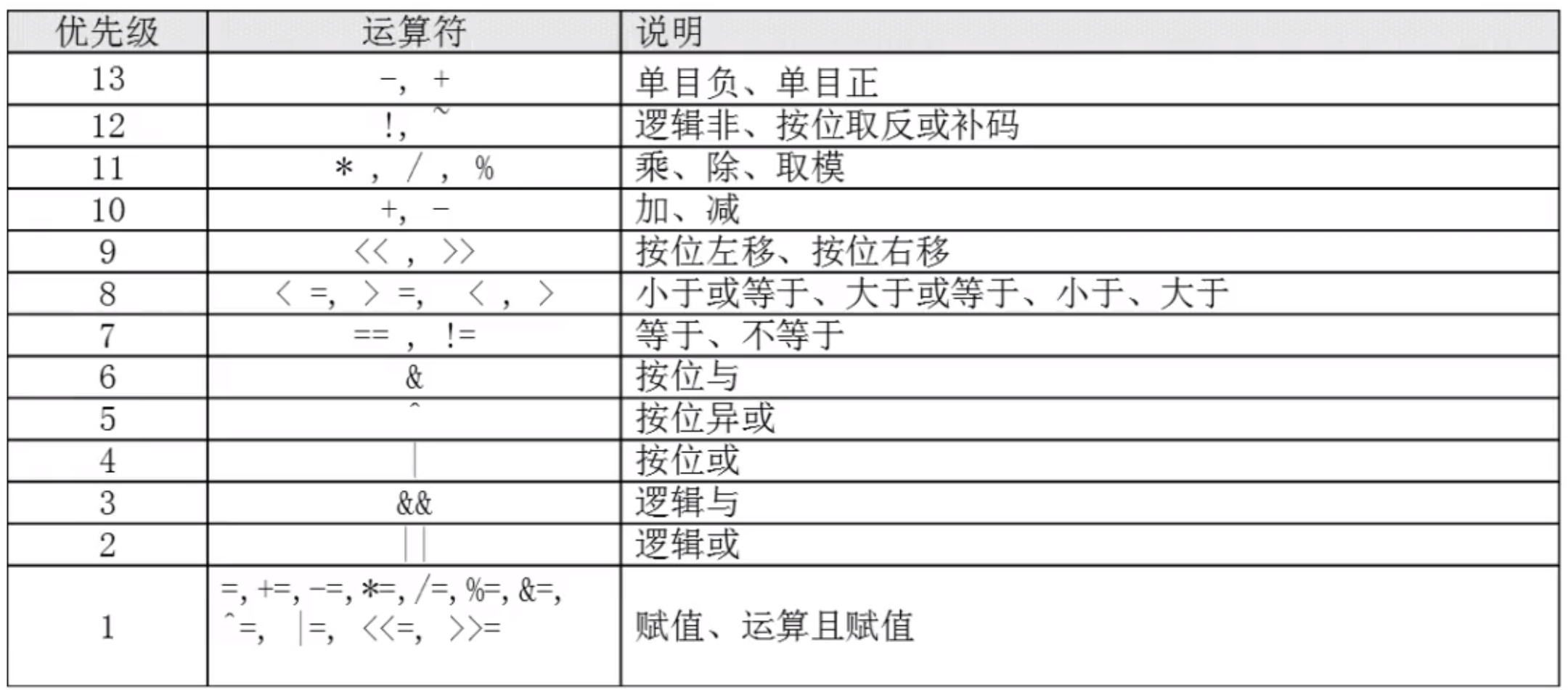
result=$(((1+2)*4/2))
echo $result
6
4. Environment variable configuration file
4.1 source command
- After modifying the configuration file, you must log out and log in again to take effect. You can use the source command without logging in again.
- source configuration file
- .config file
4.2 Introduction to environment variable configuration files
- Environment variables such as PATH, HISTSIZE, PS1, HOSTNAME, etc. are written into the corresponding environment variable configuration files.
- The environment variable configuration file mainly defines the system default environment variables that take effect in the system operating environment, such as PATH and other environment variables that take effect when logging in to this file.
| Path | Description |
|---|---|
| /etc/profile | |
| /etc/bashrc | |
| ~/.bash_profile | Will only take effect for the current user |
| ~/.bashrc | Will only take effect for the current user |
| f49353175c1062b807c03b03bd9b5817 |
4.3 Functions of environment variable configuration files
4.3.1 /etc/profile
- Modify system variables here
cat /etc/profile | grep USER| Variable name | Meaning |
|---|---|
| USER | Username |
| LOGNAME | login name |
| Email address | |
| PATH | Find path |
| HOSTNAME | hostname |
| umask | permission mask |
| /etc/profile.d/*.sh |
4.3.2 ~/.bash_profile
- Modify PATH path here
- Call ~/.bashrc
4.3.3 ~/.bashrc
- Change the alias here and configure alias
- Call /etc/bashrc
4.3.4 /etc/bashrc
- PS1 login prompt is modified here
- umask
- PATH variable
- Call the /etc/profile.d/star.sh file
4.3.5 Other configuration files
4.3.5.1 Environment variable configuration file that takes effect when logging out
- ~/.bash_logout
4.3.5.2 Script History
- When you exit the computer correctly, the history will be written to the file.
- ~/.bash_history
4.3.5.3 Shell login information
- Local terminal welcome message /etc/issue
- Remote terminal welcome message /etc/issue.net
- It can take effect regardless of remote or local /etc/motd
| Parameters | Meaning |
|---|---|
| \d | Current system date |
| \s | Display operating system name |
| \l | Display the logged-in terminal number |
| \m | Display hardware architecture, such as i386, etc. |
| \n | show hostname |
| \o | display domain name |
| \r | Display kernel version |
| \t | Display current system time |
| \u | Display the serial number of the currently logged in user |
vi /etc/ssh/sshd_config
Banner /etc/issue.net
service sshd restart
4. Regular expressions
4.1 Concept
- Regular expression is a grammatical rule used to describe character arrangement and matching patterns
- It is mainly used for pattern segmentation, matching search and replacement operations of strings
4.2 Wildcards
- Wildcards are used to match file names that meet the conditions. Wildcards are an exact match.
- ls find These commands do not support regular expressions and can only use wildcards.
| Symbol | Meaning |
|---|---|
| ? | Matches any character |
| * | Matches any number of characters |
| [] | Matches a character within the range of square brackets |
4.3 Regular expressions
Regular expressions are used to match qualified strings in files, including inclusion matching. grep, awk, sed, etc. can all support regular expressions
4.4 Metacharacters
alias grep='grep --color=auto'
| Metacharacter | Function | Example |
|---|---|---|
| * | Matches the previous character 0 or any number of times | grep 1* reg.txt |
| . | Matches any character except newline | grep . reg.txt |
| ^ | matches the beginning of the line.For example, ^hello will match lines starting with hello | grep ^a reg.txt |
| $ | matches the end of the line.For example, hello& will match lines ending with hello | grep a$ reg.txt |
| [] | Matches any character specified by the handle number, and only matches one character.For example, [aoeiu] matches any vowel, [0-9] matches any one digit, [a-z][0-9] matches two characters consisting of lowercase letters and one digit | grep ab[bc]c reg.txt |
| [^] | Matches any character except the characters in square brackets.For example, [^0-9] matches any non-numeric character, | |
| [^a-z] | Match any non-lowercase letter | grep a[^fg]c reg.txt |
| \ | Escape character, used to cancel the meaning of special symbols | grep .$ reg.txt |
| means that the preceding character appears exactly n times.For example, [0-9]{4} matches 4-digit numbers, [1][3-8][0-9]{9} matches a mobile phone number | grep "a{1}" reg.txt | |
| (n,} | means that the preceding character appears no less than n times. For example, [0-9]{2,} matches two or more digits | grep "a{1,}" reg.txt |
| means that the preceding character appears at least n times and at most m times.For example, [a-z]{6,8} matches 6~8 lowercase letters | grep "a{2,3}" reg.txt |
4.5 cut
- cut is used to extract a certain part of the text
- cut [option] filename
- -f column number, used to specify the column to be extracted
- -d delimiter, split columns according to the specified delimiter. The default delimiter is TAB. Extract the username and the shell it uses
cat /etc/passwd | cut -f 1,7 -d :4.6 printf
- Output in specified format
- printf output type output content | Parameters | Meaning | | %ns | Output string, n is a number indicating how many characters to output | | %ni | Output integers, n refers to how many numbers to output | | %m.nf | Output floating point number, m and n are numbers, referring to the number of integer digits and decimal digits output, for example, %6.2f represents the output of 6 digits, 2 decimal digits, and 4 integer digits |
printf "%s\t%s\t%s\t%s\t%s\t\%s\n" $(df -h | grep /dev/vda1) | cut -f 1,54.7 awk
- awk 'Condition 1 {Action 1} Condition 2 {Action 2}...' file name
- Condition(Pattern)
- Generally use relational expressions as conditions
- x > 10 Determine whether variable x is greater than 10
- x >=10 greater than or equal to
- x <=10 less than or equal to
- Action
- Formatted output
- $0 whole row $1 first column...
df -h | grep /dev/vda1 |awk '{print $5}'| cut -d '%' -f 14.7.1 begin end
- awk can correctly intercept tabs and spaces
- begin prints before all output
- end prints after all output
echo "" > numbers.txt
awk 'BEGIN{print "开始"}END{print "结束"}' numbers.txt
4.7.2 FS
- Field Separator, field separator
awk 'BEGIN{FS=":"}{print $1"\t"$2}' /etc/passwd4.7.3 Declare variables
numbers.txt
1
2
3awk 'BEGIN{sum=0}{sum=sum+$1}END{print sum}' numbers.txt
64.7.4 Multiple conditions
score.txt
zhangsan 91
li 81
wangwu 71awk '$2>90{print $1"\t优秀"}$2>80{print $2"\t良好"}' score.txt4.7.5 NR
- NR, represents the number of data lines read by awk after it starts executing the program.
awk '{print NR,$0}' score.txt4.7.6 OFS
- OFS Out of Field Separator, output field separator
echo "i love you" | awk 'BEGIN{ FS=" ";OFS="-" }{print $1,$2,$3}'4.8 sed command
- sed is a lightweight editor mainly used to select, replace, replace and add data.
- sed [options] '[action]' file name
- All actions must be enclosed in odd numbers
- The type is similar to batch vi operation
4.8.1 Action
| Parameter | Meaning Example | | -- | -- | -- | | a | Append, add one or more lines below each line or the specified line | sed '1a newline' score.txt| | c | Line replacement, replace the entire original data line with the string after c | sed 'c newline' score.txt| | s | String replacement, replace one string with another string, the format is "line range s/old string/new string/g" | sed '3s/lisi/lisisi/g' score.txt| | i | Insert, insert one or more lines in the current line | sed '1i newline' score.txt| | d | Delete the specified line | sed '1,2d' score.txt| | p | Print, output the specified line | sed -n '2p' score.txt|
4.8.2 Options
| Parameters | Meaning | Examples |
|---|---|---|
| -n | Generally, the sed command will output all data to the screen. If you add this option, only the processed lines will be output to the screen | sed -n '2p' score.txt |
| -e | Allows multiple sed editing commands to be applied to input data | sed -e 's/91/92/g;s/81/82/g' score.txt |
| -i | Use sed modifications to directly modify the edited file instead of outputting it on the screen | sed -i '1i newline' score.txt |
4.9 Sorting command sort
- sort [options] filename
- Options
| Options | Meaning | |
|---|---|---|
| -f | Ignore case | sort -f -t ":" -n -k 5,5 /etc/passwd |
| -n | Sort numerically, using string order by default | sort -t ":" -n -k 3,3 /etc/passwd |
| -r | Reverse sorting, from small to large by default | sort -r /etc/passwd |
| -t | Specify the delimiter, the default delimiter is tab | sort -t ":" -k 3,3 /etc/passwd |
| -k n[,m] | Sort according to the specified field range.Starting from the nth field and ending with the mth field, the default is to the end of the line | sort -t ":" -k 3,3 /etc/passwd |
sort /etc/passwd
sort -r /etc/passwd
sort -t ":" -k 3,3 /etc/passwd
4.10 wc
- wc [options] filename
| Options | Meaning |
|---|---|
| -l | Count only the number of lines |
| -w | Only number of words allowed |
| -m | Count only the number of characters |
wc wc.txt5. process control
5.1 Conditional judgment
5.1.1 Judge according to file type
| Options | Meaning |
|---|---|
| -d | Whether the file exists and is a directory |
| -e | Does the file exist |
| -f | Whether the file exists and is a normal file |
| -b | Whether the file exists and is a block device file |
| -c | Whether the file exists and is a character device file |
| -L | Whether the file exists and is a linked file |
| -p | Whether the file exists and is a pipeline file |
| -s | Whether the file exists and is non-empty |
| -S | Whether the file exists and is a socket file |
touch 1.txt
test -e 1.txt
[-e 1.txt]
echo $?
exist.sh
[ -e 1.txt ]&&echo "yes"|| echo "no"
yes
[ -e 11.txt ]&&echo "yes"|| echo "no"
no
5.1.2 Judgment based on file permissions
| Options | Meaning |
|---|---|
| -r | Whether the file exists and has read permission |
| -w | Whether the file exists and has write permission |
| -x | Whether the file exists and whether it has execution permission |
echo read  > read.txt
echo write  > write.txt
echo execute  > execute.txt

chmod u+w write.txt
chmod u+x execute.txt

[ -r read.txt ]&&echo "read yes"|| echo "no"
[ -w write.txt ]&&echo "write yes"|| echo "no"
[ -x execute.txt ]&&echo "execute yes"|| echo "no"
5.1.3 Comparison between two files
| Options | Meaning |
|---|---|
File 1 -nt File 2 | Determine whether the modification time of file 1 is newer than that of file 2 |
File 1 -ot File 2 | Determine whether the modification time of file 1 is older than that of file 2 |
File 1 -ef File 2 | Determine whether the inode numbers of file 1 and file 2 are consistent, which can be used to determine hard links |
[ write.txt -nt read.txt ]&&echo "write is older than read"|| echo "no"
[ read.txt -ot write.txt ]&&echo "read is older than write"|| echo "no"
ln execute.txt execute2.txt
[ execute.txt -ef execute2.txt ]&&echo "execute and execute2.txt are the same"|| echo "no"
5.1.4 Comparison between two integers
| Options | Meaning |
|---|---|
| Integer 1 -eq Integer 2 | Determine whether integer 1 is equal to integer 2 |
| Integer 1 -ne Integer 2 | Determine whether integer 1 is not equal to integer 2 |
| Integer 1 -gt Integer 2 | Determine whether integer 1 is greater than integer 2 |
| Integer 1 -lt Integer 2 | Determine whether integer 1 is less than integer 2 |
| Integer 1 -ge Integer 2 | Determine whether integer 1 is greater than or equal to integer 2 |
| Integer 1 -le Integer 2 | Determine whether integer 1 is less than or equal to integer 2 |
[ 2 -eq 2 ]&&echo "2==2"|| echo "no"
[ 3 -ne 2 ]&&echo "2!=2"|| echo "no"
[ 3 -gt 2 ]&&echo "2>2"|| echo "no"
[ 1 -lt 2 ]&&echo "2<2"|| echo "no"
[ 2 -ge 2 ]&&echo "2>=2"|| echo "no"
[ 2 -le 2 ]&&echo "2<=2"|| echo "no"
5.1.5 Judgment of strings
| Options | Meaning |
|---|---|
| -z string | Determine whether the string is empty |
| -n characters | Determine whether the string is non-empty |
| String 1 == String 2 | Determine whether String 1 is equal to String 2 |
| String 1 != String 2 | Determine whether String 1 is not equal to String 2 |
name=hello
[ -z "$name" ]&&echo "空"|| echo "非空"
[ -n "$name" ]&&echo "非空"|| echo "空"
name2=hello
[ "$name" == "$name2" ]&&echo "相等"|| echo "不相等"
[ "$name" != "$name2" ]&&echo "不相等"|| echo "相等"
5.1.6 Multiple conditions judgment
| Options | Meaning |
|---|---|
| Judgment 1 -a Judgment 2 | Logical AND |
| Judgment 1 -o Judgment 2 | Logical OR |
| !Judgment | Logical NOT |
[ 2 -gt 1 -a 3 -gt 2 ]&&echo "yes"|| echo "no"
[ 2 -gt 1 -a 3 -gt 4 ]&&echo "yes"|| echo "no"
[ 2 -gt 1 -o 3 -gt 4 ]&&echo "yes"|| echo "no"
[ ! 3 -gt 4 ]&&echo "yes"|| echo "no"
5.2 Single branch if statement
- if statement ends with fi
- [Conditional judgment expression] is to use the test command to judge, so there must be a space between the square brackets and the conditional judgment expression.
- Then is followed by the program to be executed after meeting the conditions. It can be placed after [] and separated by;, or it can be wrapped in a new line, without;
5.2.1 Syntax
if [条件判断];then
 代码体
fiif [条件判断]
then
代码体
fiif [ 2 -gt 1 ];then echo bigger; fi
if [ 2 -gt 1 ]
then
echo bigger
fi5.2.2 Determine whether the current user is the root user
isRoot.sh
#!/bin/bash
user=$(whoami)
user=`whoami`
if [ "$user" == root ]
then
echo "我是root用户"
fi
5.3 Double branch if statement
5.3.1 Syntax
if [条件判断]
then
 代码体1
else
 代码体2
fi
5.3.2 Determine whether it is a directory
isDir.sh
#!/bin/bash
read -t 10 -p "请输入一个路径" dir
if [ -d "$dir" ]
then
  echo "$dir是目录"
else
  echo "$dir不是目录"
fi
5.4 Multi-branch if statement
5.4.1 Syntax
if [条件判断1]
then
 代码体1
elif [条件判断2]
 代码体2
else
 代码体3
fi
grade.sh
#!/bin/bash
read -p "请输入一个分数" grade
if [ "$grade" -gt 90 ]
 then
  echo 优秀
elif [ "$grade" -gt 80 ]
  then
   echo 良
else
   echo 差
fi
5.5 case statement
- Both case and if are multi-branch judgment statements. If can judge multiple conditions, case can only judge one condition. 5.5.1 Syntax
case 变量名 in
值1)
  代码块1
  ;;
值2)
  代码块2
 ;;
*)
  代码块3
 ;;
esac
case.sh
#!/bin/bash
read -p "yes or no?" -t 30 choose
case $choose in
  "yes")
    echo '是'
    ;;
  "no")
    echo "否"
   ;;
  *)
    echo 其它
   ;;
esac
5.6 for loop
5.6.1 Syntax
for 变量 in 值1 值2 值3
do
代码块
done
for.sh
#!/bin/bash
for i in 1 2 3
do
 echo $i
done
5.6.2 Syntax
#!/bin/bash
for((i=1;i<=10;i++));
do
 echo $(($i));
done
5.7 while loop
- The while loop is an indefinite loop, also called a conditional loop. As long as the condition is true, it will continue.
while [条件判断式]
do
 代码块
done
while.sh
#!/bin/bash
i=1
result=0
while [ $i -le 100 ]
 do
   result=$(($result+i))
   i=$(($i+1))
 done
echo $result
5.8 until loop
- Stop until the condition is not met
until.sh
#!/bin/bash
i=1
result=0
until [ $i -gt 100 ]
 do
   result=$(($result+i))
   i=$(($i+1))
 done
echo $result
6. function
- The Linux shell allows user-defined functions, which can then be called at will in the shell script.
- You can define it with function fun(), or you can define it directly with fun() without any parameters.
- No need to add () when calling a function
6.1 Simple functions
[ function ] funcName [()]
{
    action;
    [return int;]
}start(){
> echo start
> }
start#!/bin/bash
start(){
echo start
}
start6.2 Return value
- Parameter return, you can add: return return, if not added, the result of running the last command will be used as the return value
sum(){
>  result=$(($1+$2))
>  return $result
> }
sum4 2 3
echo $?
5
6.3 Parameter description
| Parameter processing | Description |
|---|---|
| $# | Number of parameters passed to the script |
| $* | Display all parameters passed to the script as a single string |
| $@ | Same as $*, but used in quotes and returns each parameter in quotes |
| $$ | The current process ID number of the script running |
| $? | Displays the exit status of the last command.0 means no error, any other value means there is an error |
7.shell actual combat
7.1 Precautions
- Add interpreter at the beginning: #/bin/bash and comments
- Naming suggestion rules: capitalize variable names, lowercase local variables, lowercase function names, and names reflect actual functions
- The default variable is global. In the function, the variable local is designated as a local variable to avoid contaminating other scopes.
- set -e exits the script when the execution is non-zero, set -x prints the execution process
- When writing a script, you must test it first before moving it to the production environment.
7.2 Check host survival status #
ip.sh
#!/bin/bash
for IP in $@; do
  if ping -c 1 $IP &>/dev/null; then
     echo "$IP is ok."
  else
     echo "$IP is wrong!"
  fi
donesh ip.sh 127.0.0.1