Git Tools - Reset Demystified
Before moving on to more specialized tools, let’s explore Git’s reset and checkout commands.Among the Git commands you encounter for the first time, these two are the most confusing.They can do so many things that it seems difficult to truly understand them and use them appropriately.To address this point, let us first make a simple metaphor.
three trees
The simplest way to understand reset and checkout is to think of Git as a content manager to manage three different trees."Tree" here actually means "a collection of files", not a specific data structure.(In some cases the index doesn't look like a tree, but our goal here is to think about it in a simple way.)
Git, as a system, uses its general operations to manage and manipulate these three trees:
| tree | purpose |
|---|---|
| HEAD | The snapshot of the last commit, the parent node of the next commit |
| Index | A snapshot of the expected next commit |
| Working Directory | Sandbox |
HEAD
HEAD is the pointer referenced by the current branch, which always points to the last commit on that branch .This means that HEAD will be the parent node for the next commit.Usually, the simplest way to understand HEAD is to think of it as The last commit on this branch snapshot.
Actually, it's easy to see what the snapshot looks like.The following example shows the actual directory listing of the HEAD snapshot, along with the SHA-1 checksum of each file within it:
$ git cat-file -p HEAD
tree cfda3bf379e4f8dba8717dee55aab78aef7f4daf
author Scott Chacon  1301511835 -0700
committer Scott Chacon  1301511835 -0700

initial commit

$ git ls-tree -r HEAD
100644 blob a906cb2a4a904a152...   README
100644 blob 8f94139338f9404f2...   Rakefile
040000 tree 99f1a6d12cb4b6f19...   lib
Git's cat-file and ls-tree are low-level commands. They are generally used for low-level work and are not used in daily work.But they can help us understand what's going on.
Index
The index is yours expected next commit .We will also refer to this concept as Git's "staging area", which is what happens when you run git commit What Git looks like.
Git populates the index area with all the files that were last checked out into the working directory, so they look just as they did when they were originally checked out.You will then replace some of these files with the new versions and then use git commit to convert them into a tree to be used as a new commit.
$ git ls-files -s
100644 a906cb2a4a904a152e80877d4088654daad0c859 0	README
100644 8f94139338f9404f26296befa88755fc2598c289 0	Rakefile
100644 47c6340d6459e05787f644c2447d2595f5d3a54b 0	lib/simplegit.rb
Again, we're using this again here git ls-files This behind-the-scenes command displays what the index currently looks like.
To be precise, the index is not technically a tree structure, it is actually implemented as a flat list.But for us, it's enough to think of it as a tree.
working directory
Finally, you have your own working directory (often also called workspace).The other two trees store their contents in .git folders in an efficient but not intuitive way.The working directory will unpack them into actual files for editing.You can think of your working directory as a sandbox.You can make any changes you want until you commit your changes to the staging area and record them in history.
$ tree
.
├── README
├── Rakefile
└── lib
    └── simplegit.rb

1 directory, 3 files
Workflow
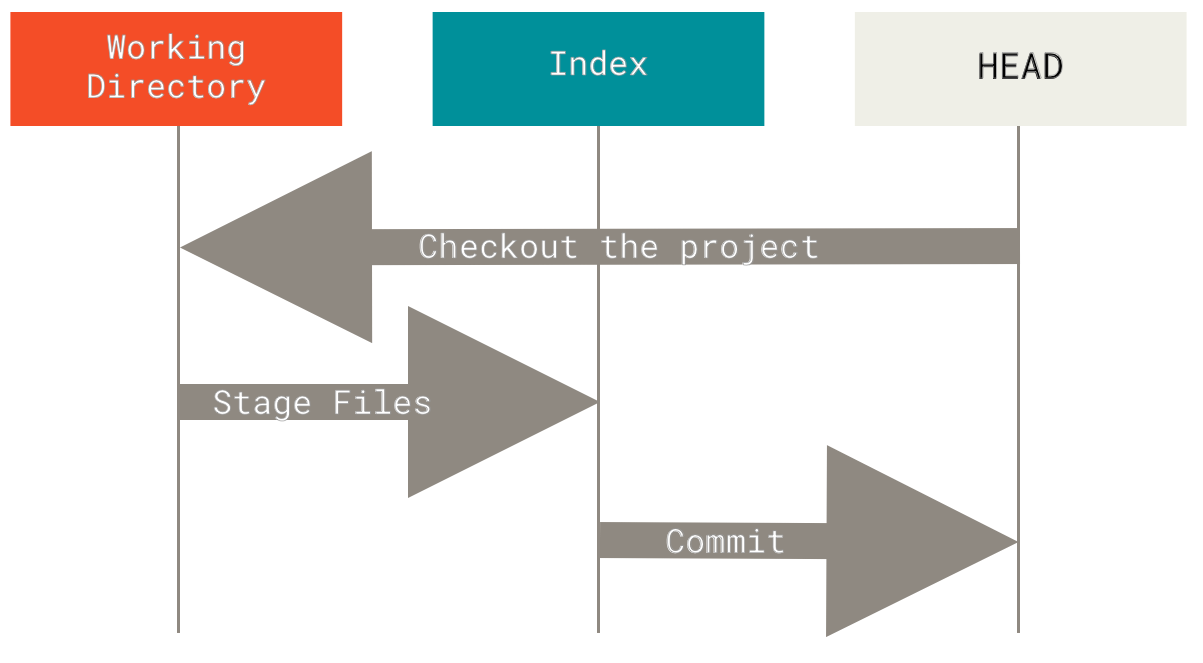
The classic Git workflow manipulates these three areas to record snapshots of the project in a more continuous state.
Let's visualize this process: let's say we go to a new directory and there is a file in it.Let's call this the v1 version of the file and mark it blue.Now run git init, which will create a Git repository with the HEAD reference pointing to the uncreated master branch.
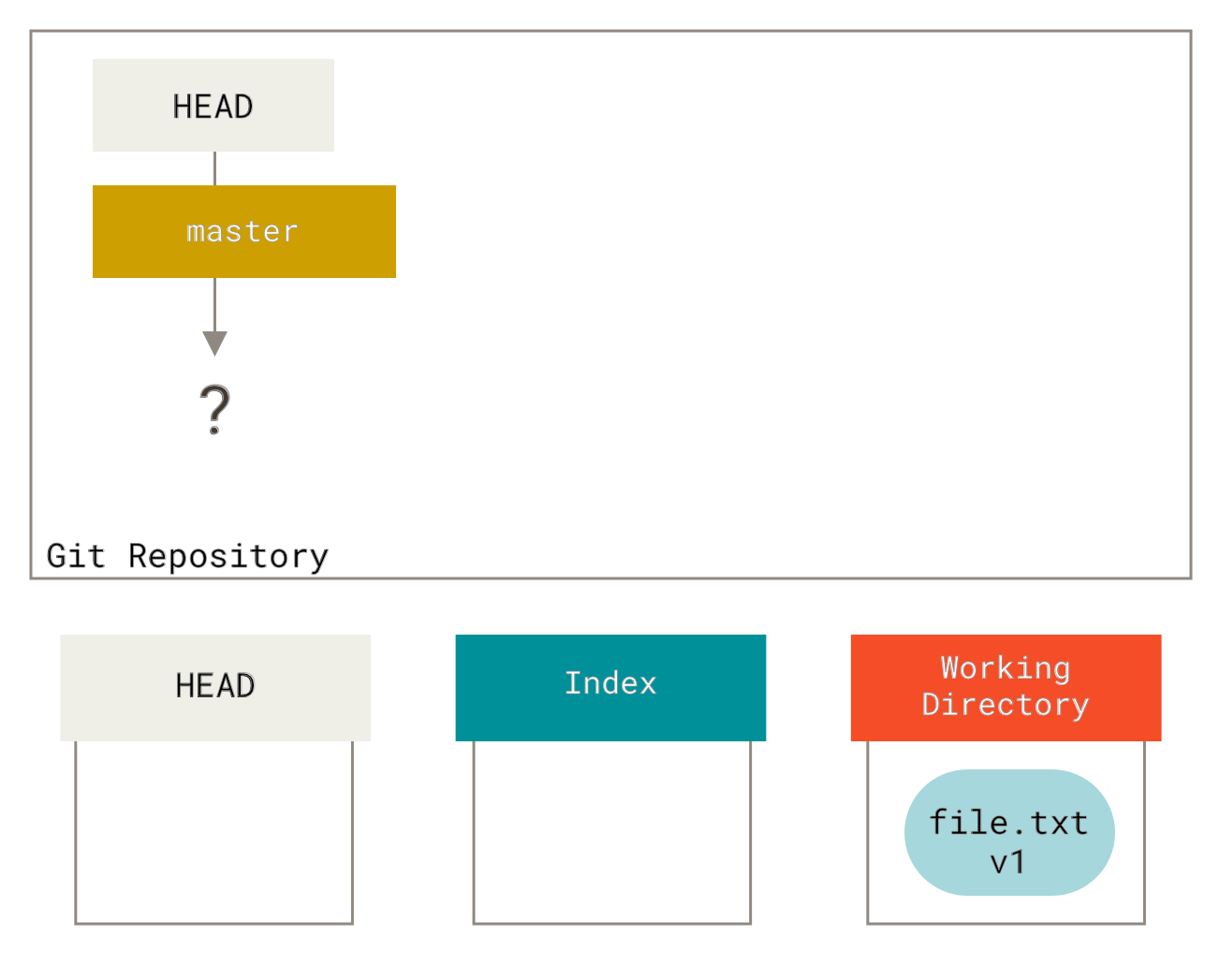
At this point, only the working directory has content.
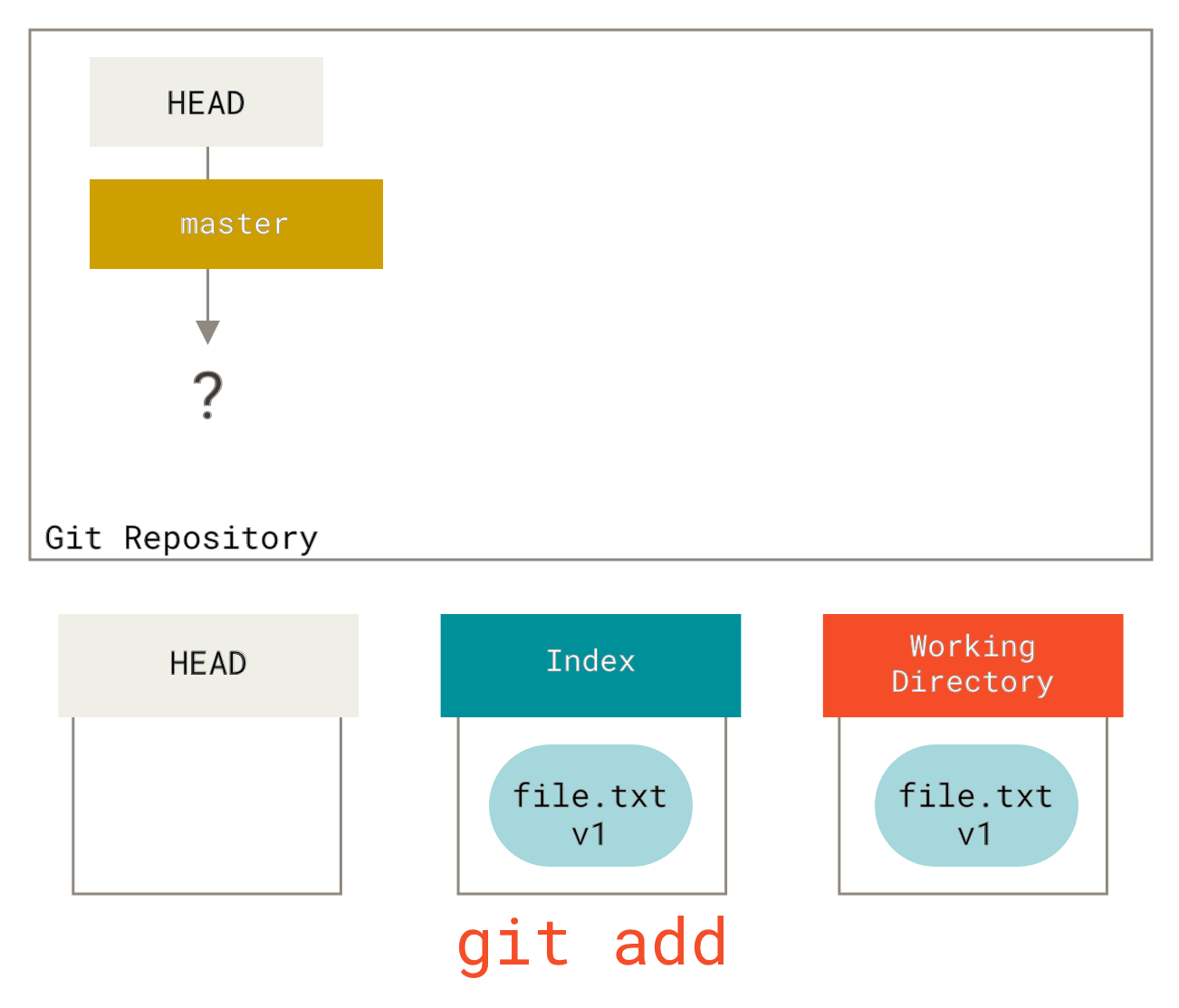
Now we want to commit this file, so use git add to get the contents of the working directory and copy it into the index.
Then run git commit, which will take the contents of the index and save it as a permanent snapshot, then create a commit object pointing to the snapshot, and finally update master to point to this commit.
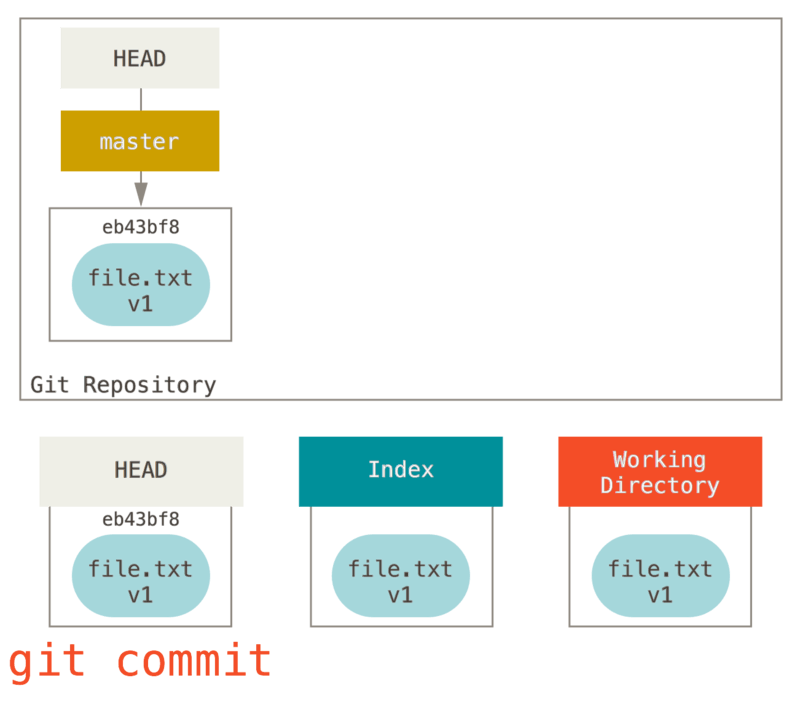
If we run git status at this point, we will find that there are no changes, because the three trees are now exactly the same.
Now we want to make changes to the file and submit it.We'll go through the same process; first modify the files in the working directory.We'll call this the v2 version of the file and mark it red.
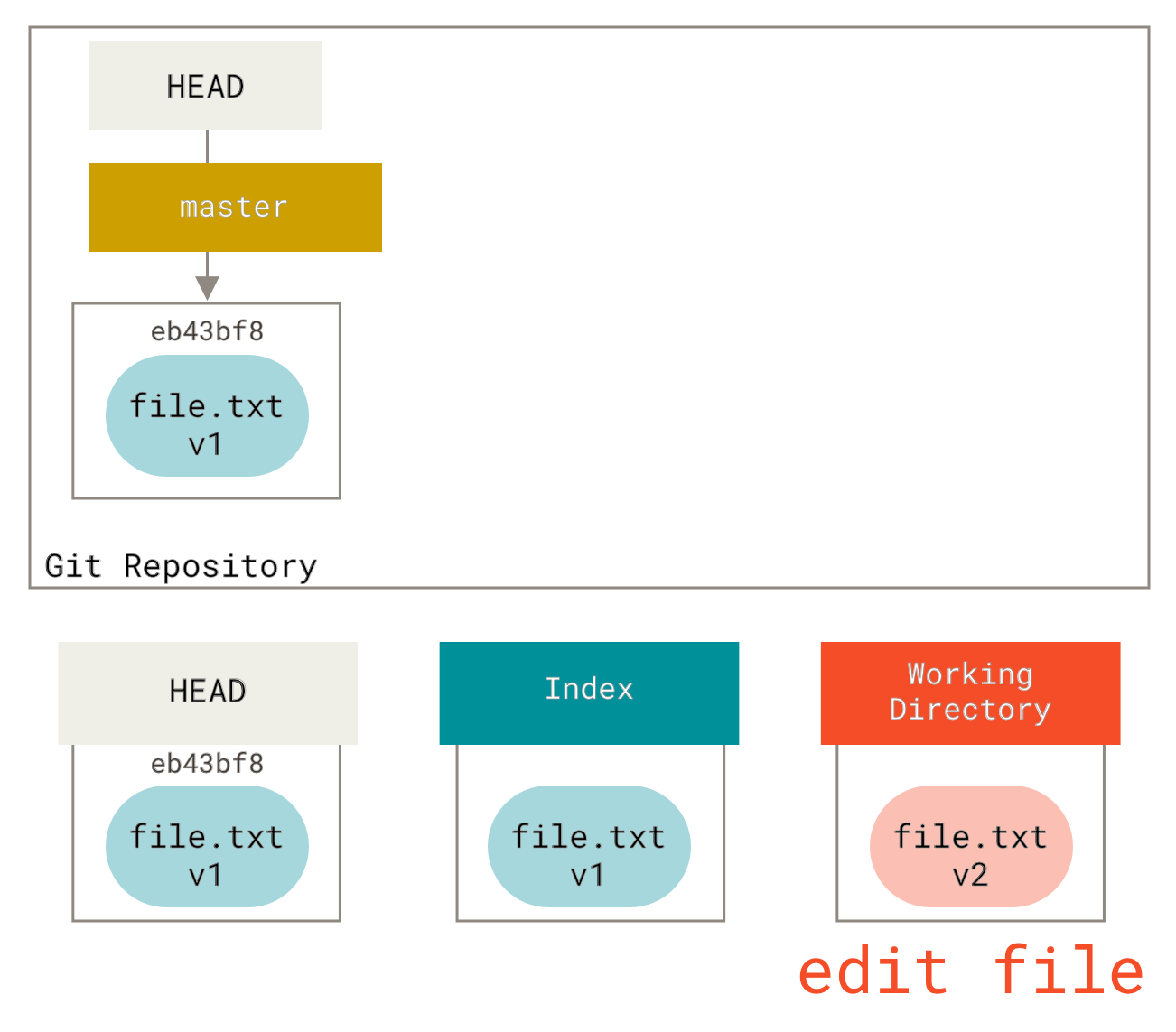
If we now run git status we will see that the file appears under "Changes not staged for commit" and is marked in red because the entry is different between the index and the working directory.Then we run git add to stage it into the index.
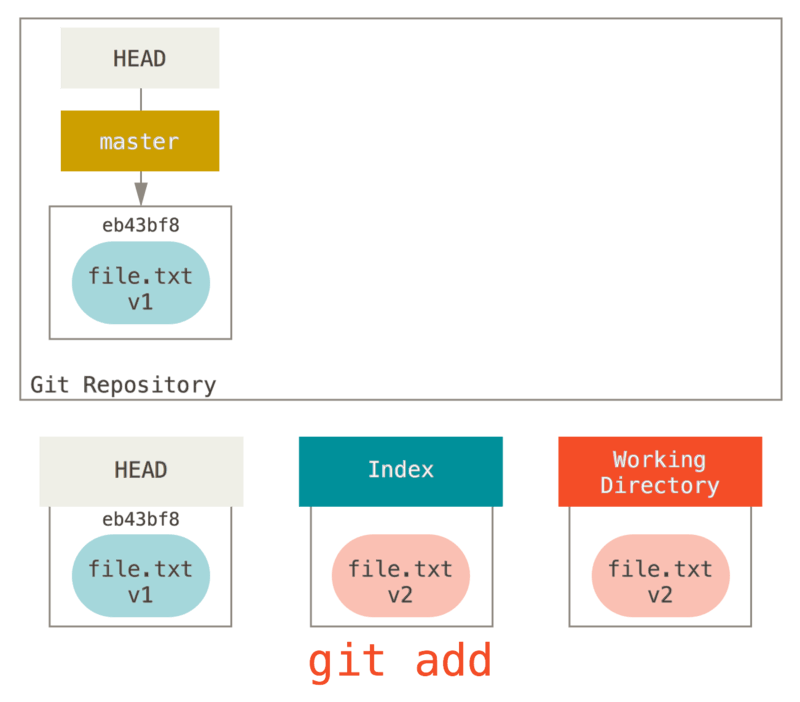
At this point, because the index and HEAD are different, if you run git status you will see that the file under "Changes to be committed" turns green - that is, the next expected commit is now different from the previous commit.Finally, we run git commit to complete the commit.
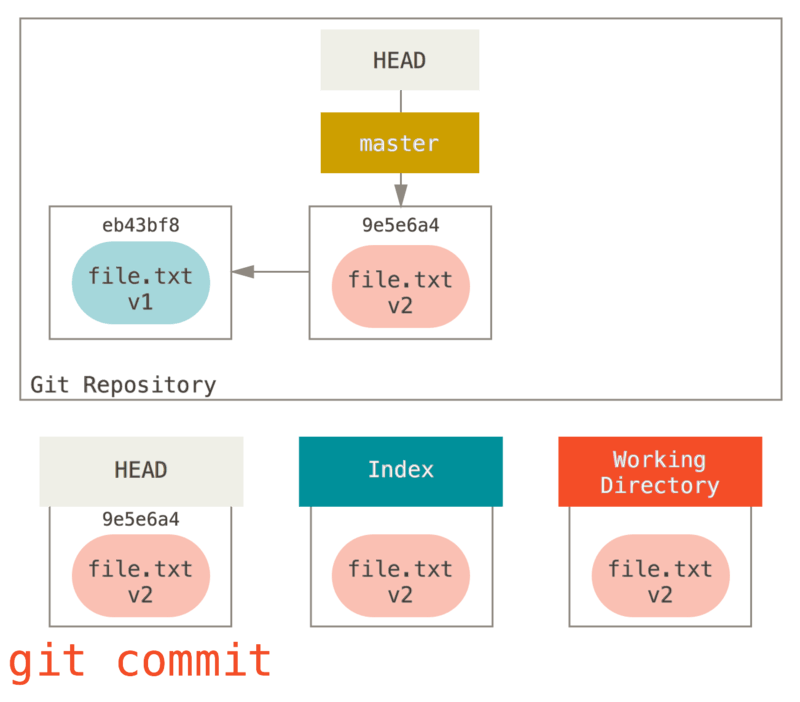
Now running git status will have no output because the three trees are the same again.
The process for switching branches or clones is similar.When a branch is checked out, it modifies HEAD to point to the new branch reference, populates index with the snapshot of that commit, and then copies the contents of index into the working directory.
The role of reset
It makes more sense to observe the reset command in the following scenarios.
To demonstrate these examples, assume we modify the file.txt file again and commit it a third time.History now looks like this:
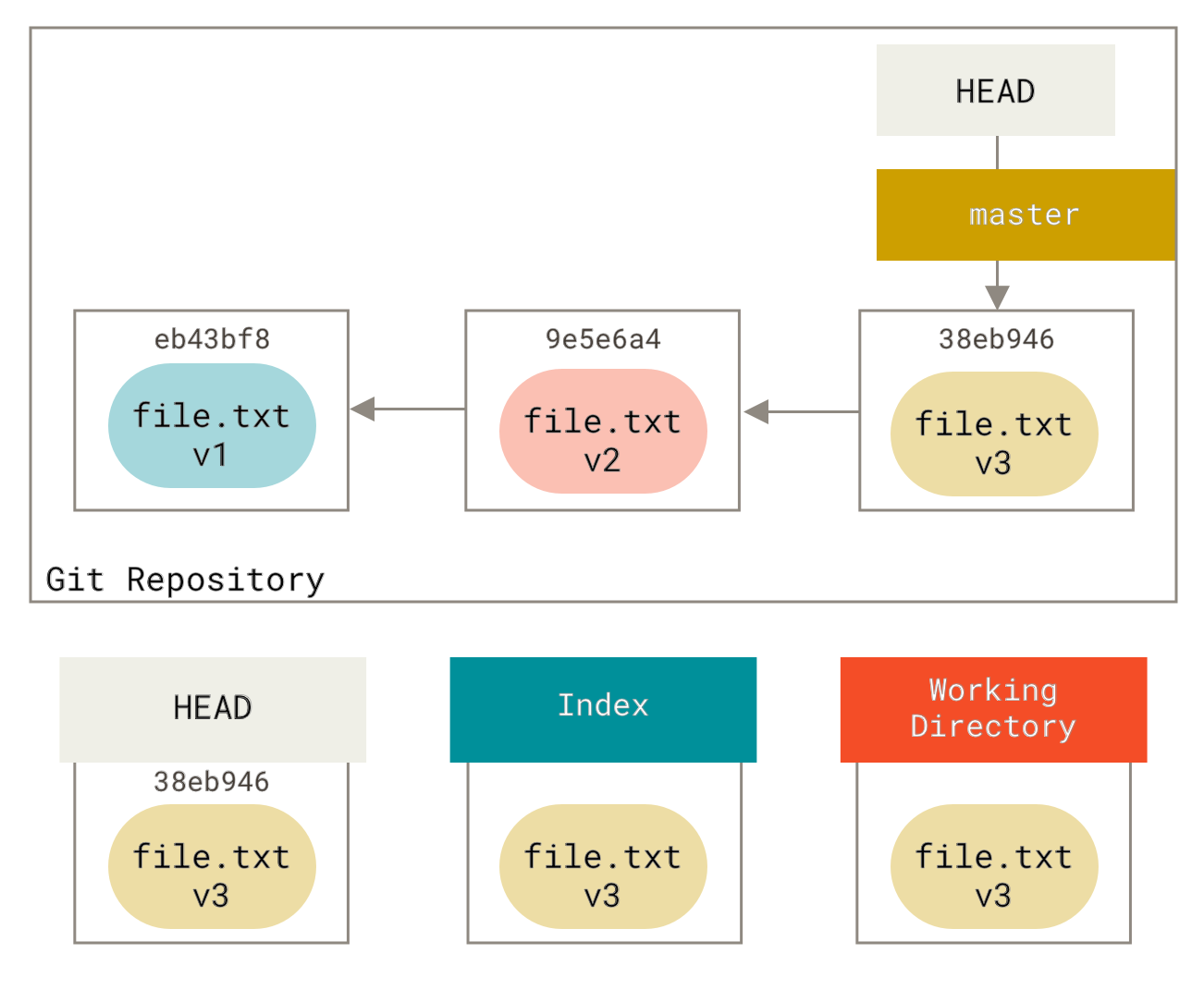
Let's follow reset and see what it does.It directly manipulates these three trees in a simple and predictable way.It does three basic operations.
Step 1: Move HEAD
The first thing reset does is move where HEAD points.This is not the same as changing HEAD itself (what checkout does); reset moves the branch that HEAD points to.This means that if HEAD is set to the master branch (for example, you are on the master branch), running git reset 9e5e6a4 will make master point to 9e5e6a4.
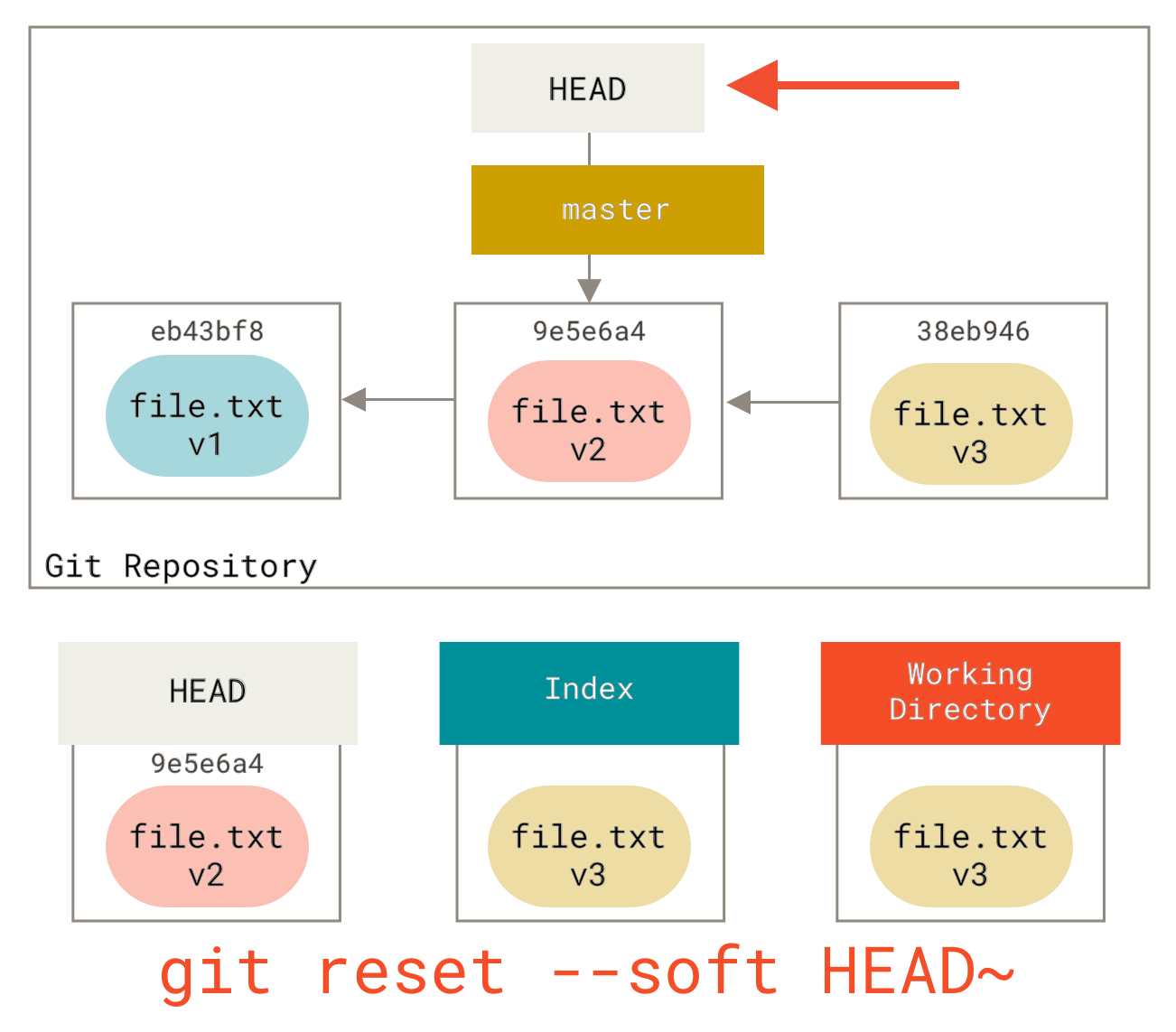
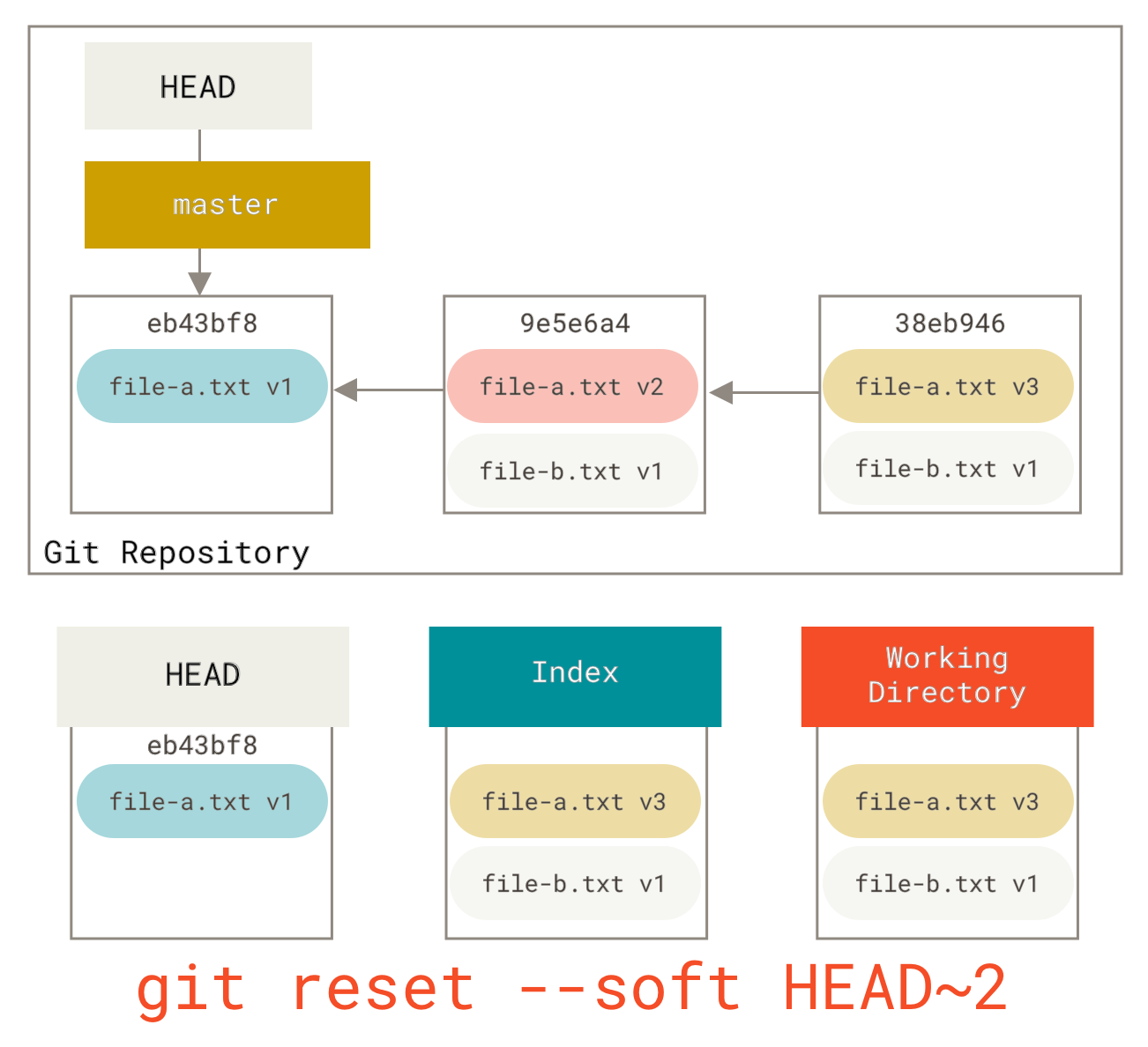
Whatever form of reset you call with a commit, it will try to do this first.Use reset --soft and it will just stop there.
Now take a look at the above image and understand what is happening: it is essentially undoing the last git commit command.When you run git commit, Git creates a new commit and moves the branch pointed to by HEAD to point to that commit.When you reset it back to HEAD~ (HEAD's parent node), you actually move the branch back to its original location without changing the index and working directory.Now you can update the index and run git commit again to complete what git commit --amend did (see Modify the last commit).
Step 2: Update index (--mixed)
Note that if you run git status now, you will see the new HEAD and the difference between it and the index highlighted in green.
Next, reset updates the index with the contents of the current snapshot pointed to by HEAD.
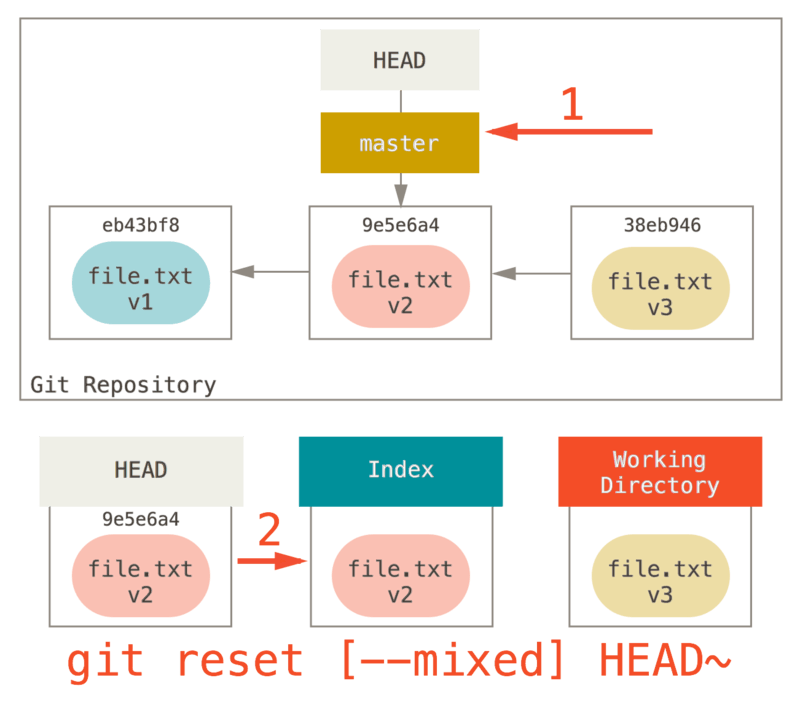
If the --mixed option is specified, reset will stop at this point.This is also the default behavior, so if no options are specified (in this case just git reset HEAD~), this is where the command will stop.
Now take another look at the image above to understand what is happening: it still undoes the last time 提交 , but still Unstage All things.So, we rolled back to all git add and git commit before the command is executed.
Step 3: Update working directory (--hard)
The third thing reset does is make the working directory look like an index.If the --hard option is used, it will continue with this step.
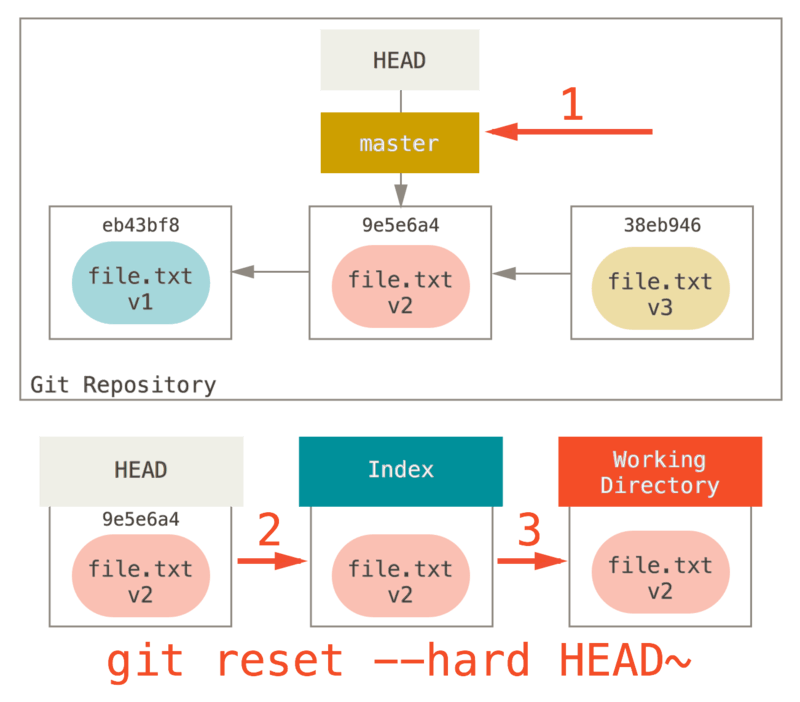
Now let's think back to what just happened.You undo the last commit, the git add and git commit commands and all work in the working directory.
It's important to note that the --hard flag is the only dangerous use of the reset command, and it's one of the only operations in which Git actually destroys data.Any other form of reset call can be easily undone, but the --hard option cannot, since it forces overwriting of files in the working directory.In this particular case, we still have a v3 version of the file in a commit in our Git database, and we can retrieve it via reflog.But if the file has not been committed, Git will still overwrite it, making recovery impossible.
review
The reset command will rewrite these three trees in a specific order, stopping when you specify the following options:
- Move the pointer to the HEAD branch (if
--softis specified, stop here) - Make the index look like HEAD (stop here if
--hardis not specified) - Make the working directory look like an index
Reset by path
The behavior of reset in its basic form has been described above, but you can also provide it with a path.If a path is specified, reset will skip step 1 and limit its scope to the specified file or set of files.This makes sense, since HEAD is just a pointer, and you can't have it point to parts of two commits at the same time.However, the index and working directory can be partially updated, so the reset will continue with steps 2 and 3.
Now, if we run git reset file.txt (which is actually a shorthand form of git reset --mixed HEAD file.txt, since you neither specified a commit's SHA-1 or branch nor --soft or --hard), it will:
- Move the HEAD branch pointing to (skipped)
- Make the index look like HEAD (stop here)
So it essentially just copies file.txt from HEAD into the index.
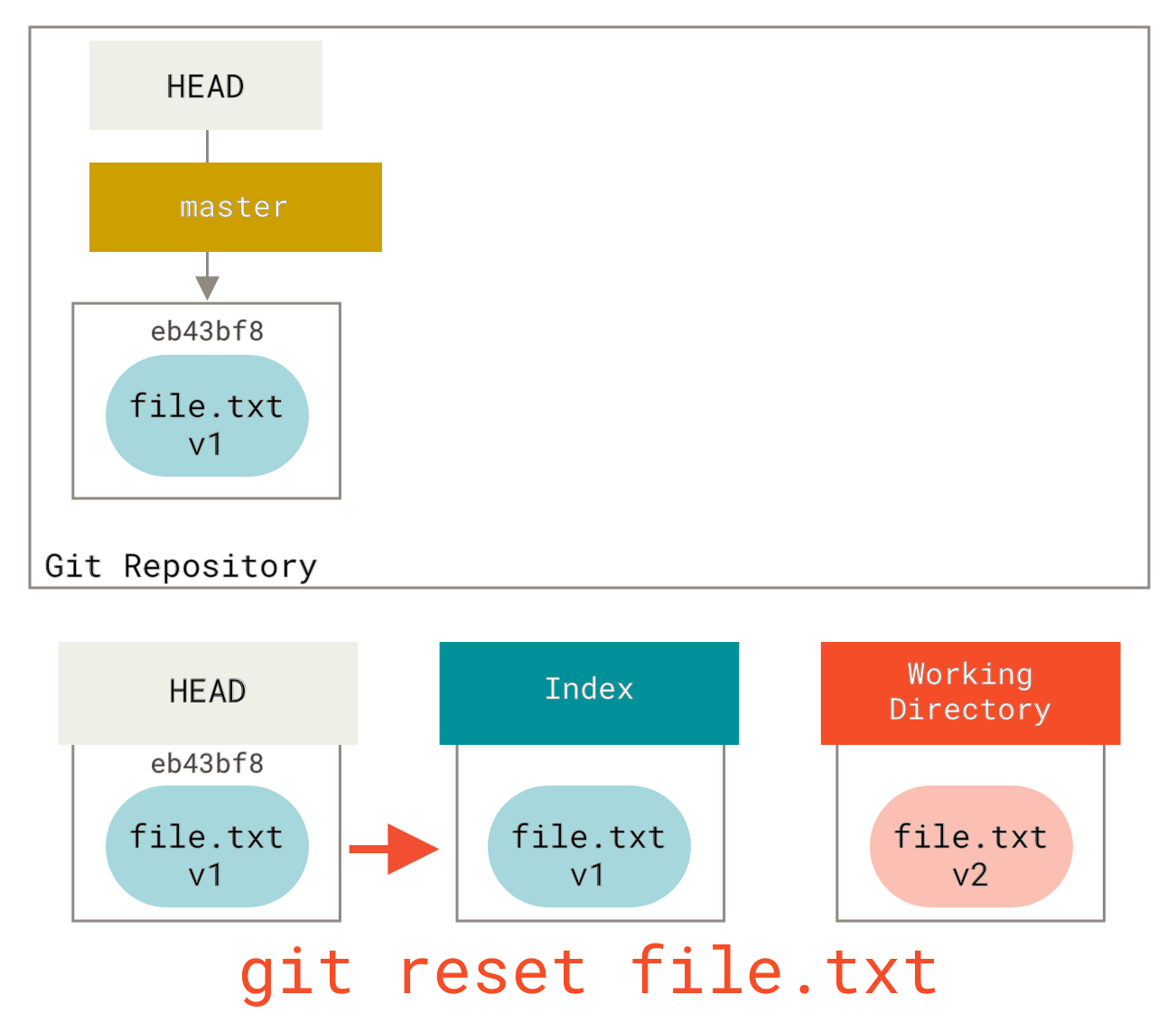
It also has the practical effect of unstaged files.If we look at the diagram of this command and then think about what git add does, we see that they are exactly the opposite.
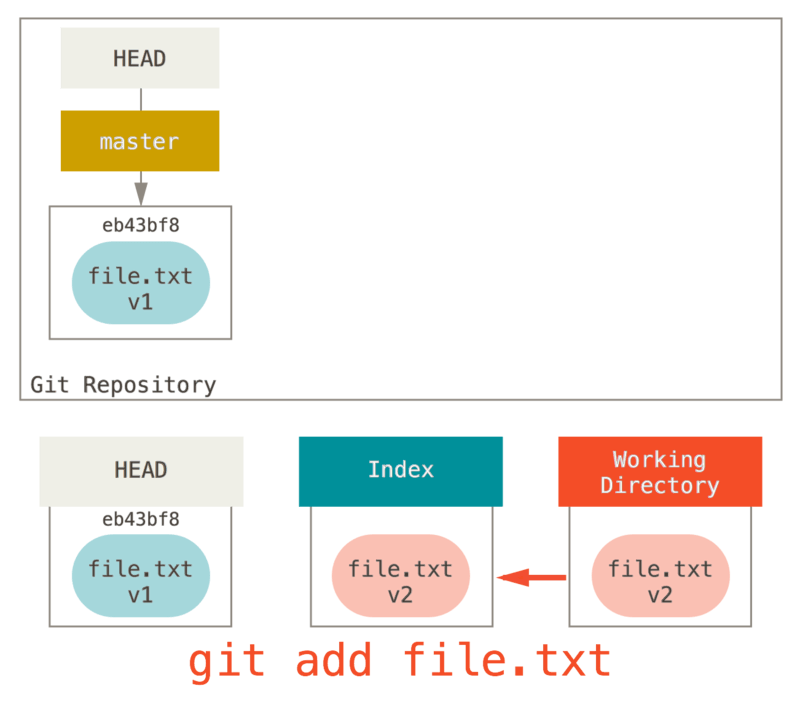
This is why the output of the git status command suggests running this command to unstage a file.(See Unstaging files to learn more.)
Instead of letting Git pull data from HEAD, we can pull the corresponding version of the file by specifying a commit.We just run a command like git reset eb43bf file.txt.
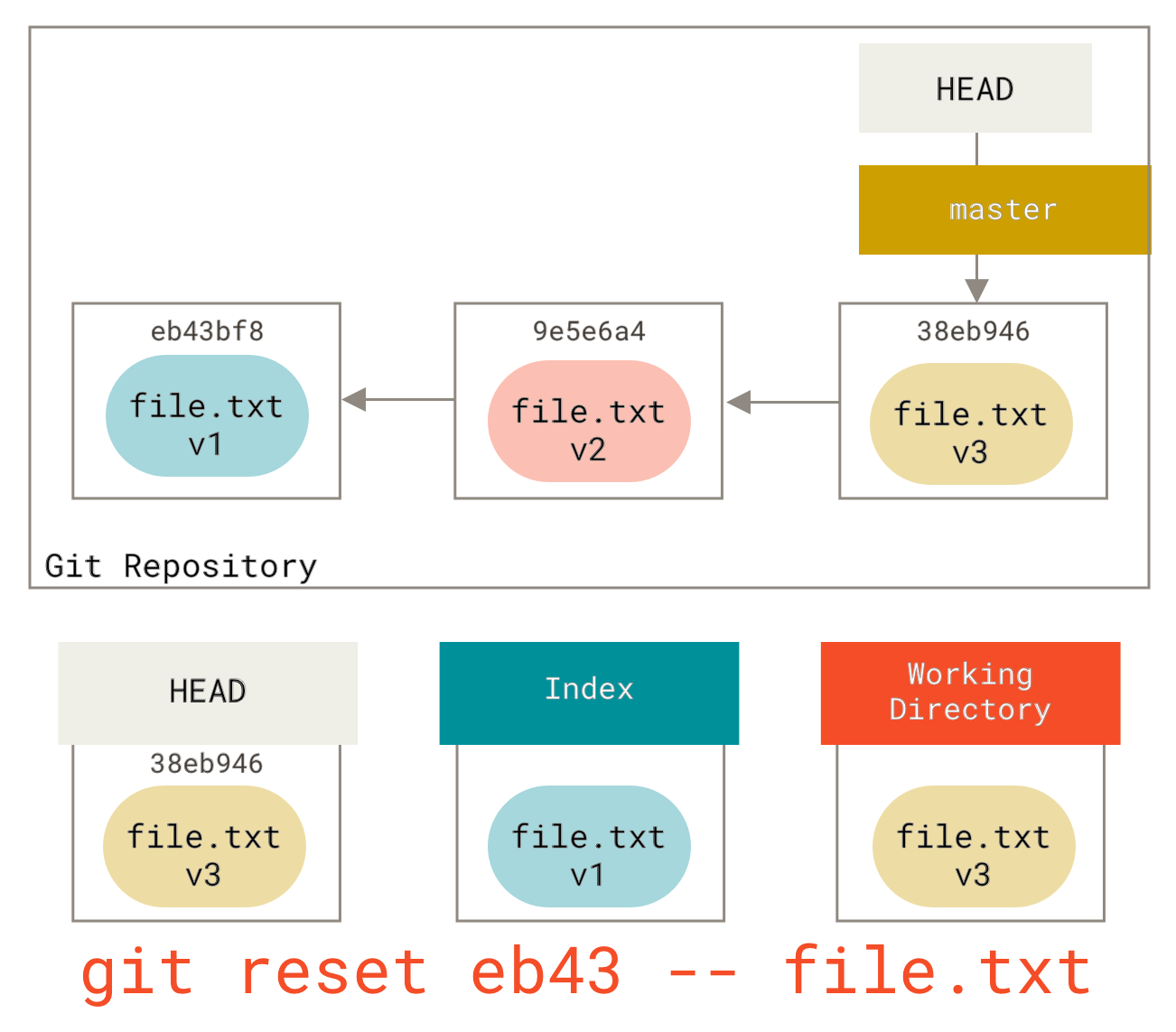
It actually does the same thing, which is to restore the files in the working directory to v1 version, run git add Add it and then restore it to v3 version (just without actually going through the steps).If we now run git commit , it will record a message "Restore this file to v1 version" change, even though we don't actually have it in the working directory again.
Another thing like git add is that the reset command can also accept a --patch option to unstage the contents piece by piece.This allows you to unstage or restore content as you choose.
Compression
Let’s take a look at how you can use this new feature to do something interesting – compress commits.
Suppose you have "oops.", "WIP" and "forgot this file" in a series of commit messages. If you are smart, you can use reset to easily and quickly compress them into a single commit, which also shows your cleverness.(Squashing commits shows another way, but in this case it is easier to use reset.)
Suppose you have a project where the first commit has a file, the second commit adds a new file and modifies the first file, and the third commit modifies the first file again.Since the second commit is a work in progress, you want to compress it.
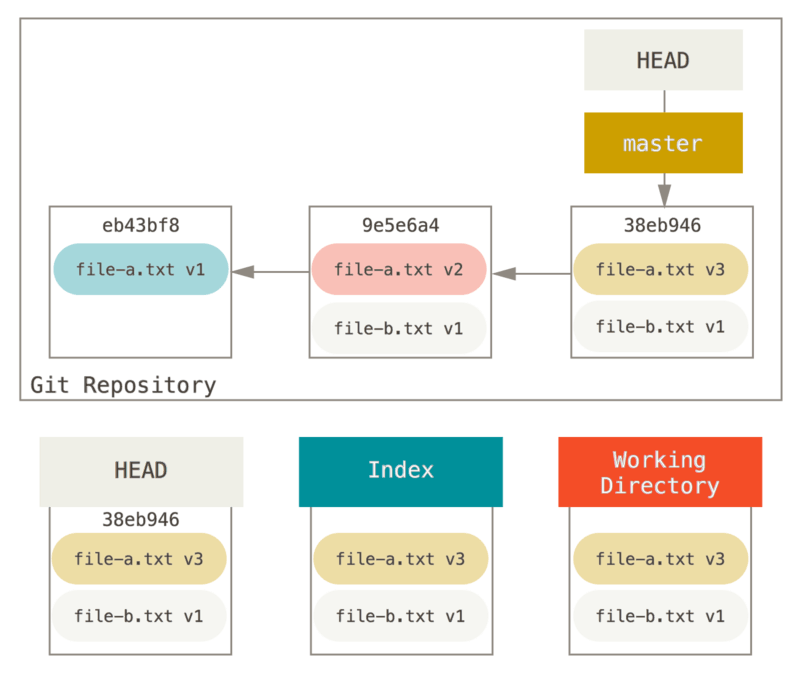
Then you can run git reset --soft HEAD~2 to move the HEAD branch to an older commit (i.e. the most recent commit you want to keep):
Then just run git commit again:
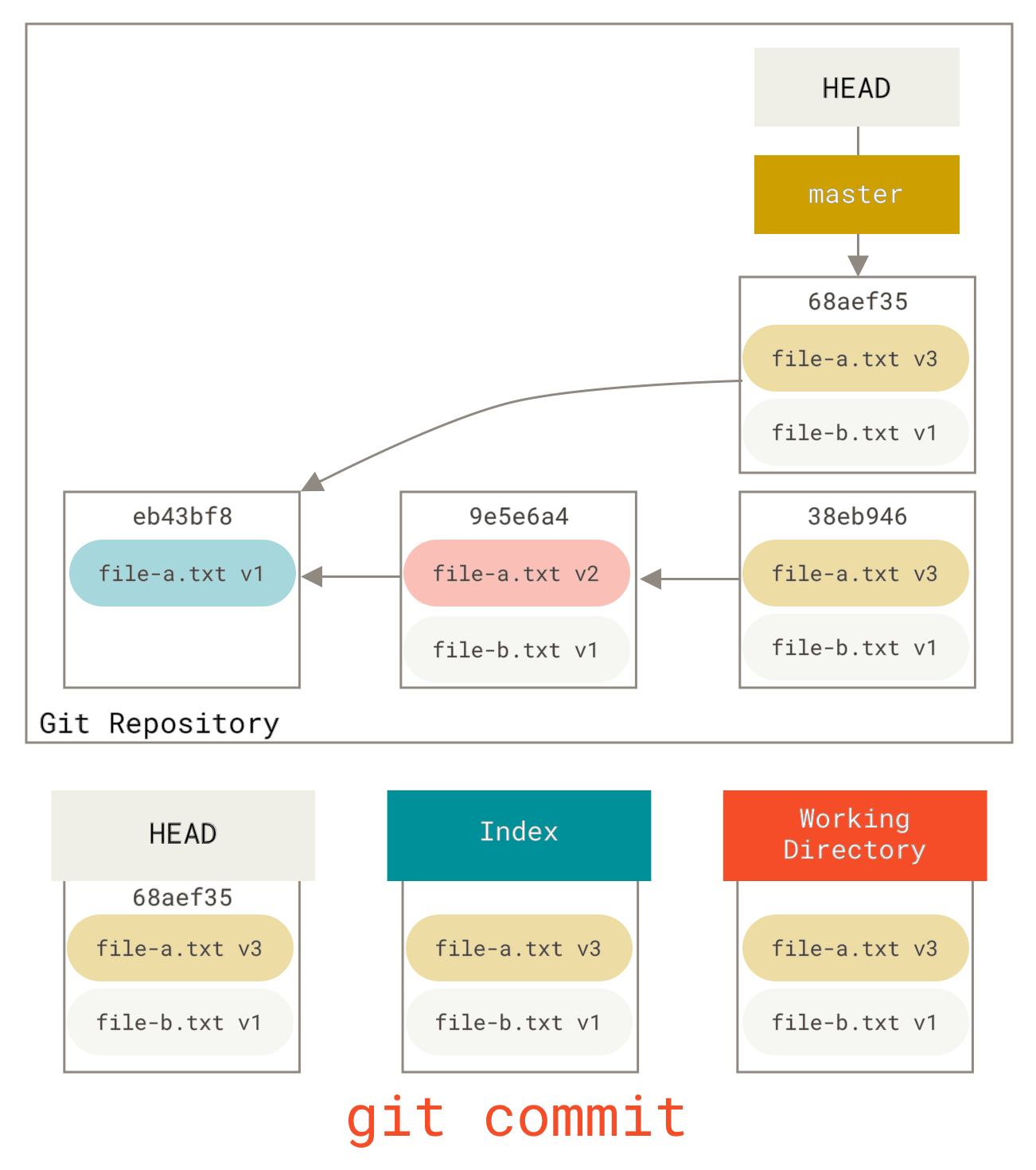
Now you can view the reachable history, the history of upcoming pushes, and it looks like there is a commit of v1 version file-a.txt, and then a second commit changes file-a.txt to version v3 and adds file-b.txt.The file containing the v2 version is no longer in history.
Check out
Finally, you may also want to know the difference between checkout and reset.Like reset, checkout also operates three trees, but it is a little different depending on whether you pass a file path to the command.
without path
Running git checkout [branch] is very similar to running git reset --hard [branch] in that it updates all three trees to look like [branch], but there are two important differences.
First of all, unlike reset --hard, checkout is safe for the working directory. It will check to ensure that changed files will not be lost.In fact, it's even smarter.It will first try a simple merge in the working directory so that all not modified files will be updated.reset --hard will completely replace everything without checking.
The second important difference is how checkout updates HEAD.reset will move the HEAD branch to point to, while checkout will only move HEAD itself to point to another branch.
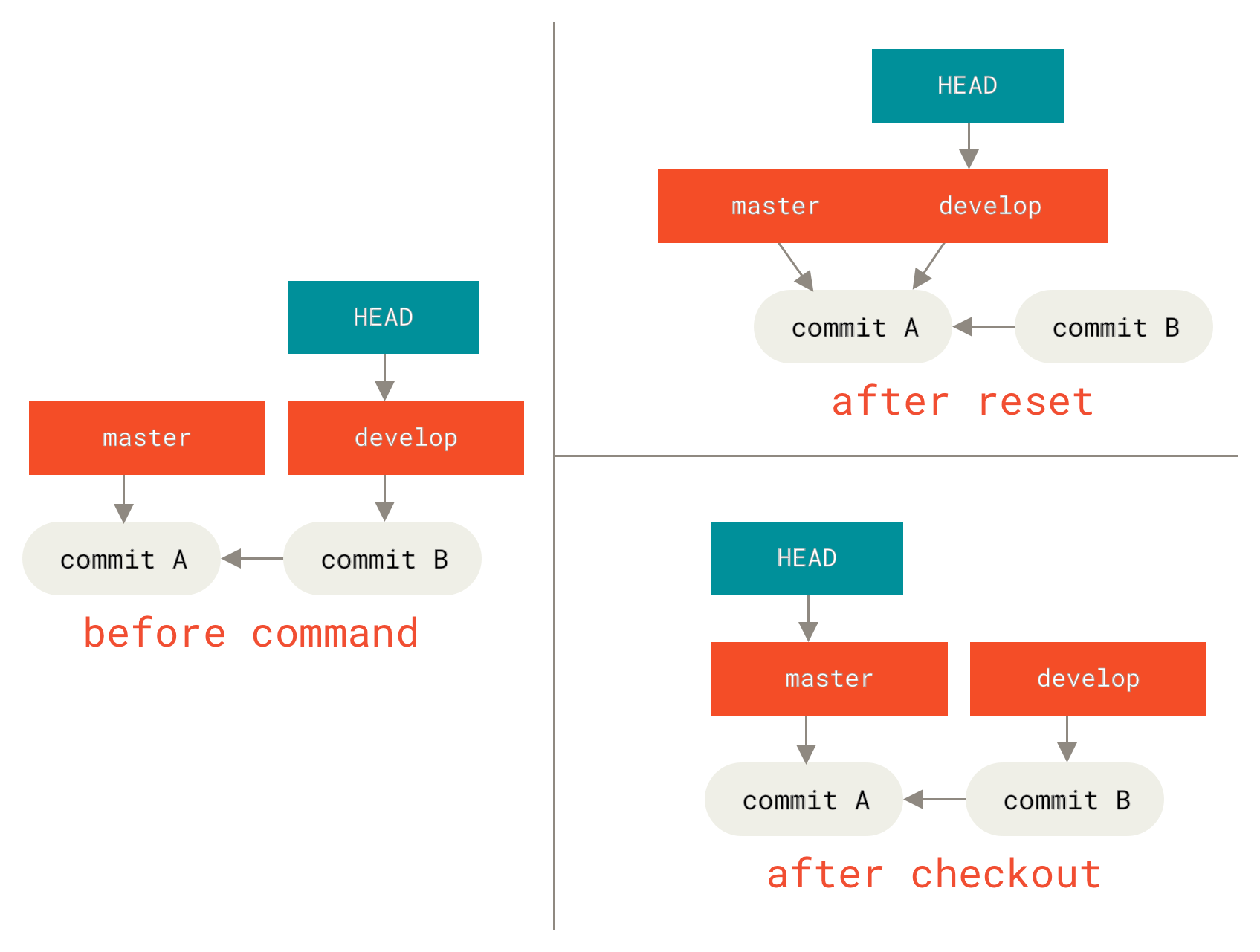
For example, suppose we have the master and develop branches, each pointing to a different commit; we are now on develop (so HEAD points to it).If we run git reset master, develop itself will now point to the same commit as master.And if we run git checkout master, develop will not move, HEAD itself will move.Now HEAD will point to master.
So, although in both cases we moved HEAD so that it points to commit A, practice is very different. reset will move the pointer of the HEAD branch, while checkout then moves HEAD itself.
with path
Another way to run checkout is to specify a file path, which like reset will not move HEAD.It updates the index with the file in that commit just like git reset [branch] file, but it also overwrites the corresponding file in the working directory.It's like git reset --hard [branch] file (if reset allows you to run it), which is not safe for the working directory, and it doesn't move HEAD.
In addition, like git reset and git add, checkout also accepts a --patch option, allowing you to restore the file contents piece by piece according to your choice.
Summary
Hopefully you are now familiar with and understand the reset command, but you may still be a little confused about the difference between it and checkout since it is unlikely to remember all the rules for the different calls.
The following cheat sheet lists the effects of commands on the tree."REF" in the "HEAD" column means that the command moved the branch reference pointed to by HEAD, while "HEAD" means that only HEAD itself was moved.Pay special attention to the WD Safe? column - if it's marked NO, think about it before running the command.
| HEAD | Index | Workdir | WD Safe? | |
|---|---|---|---|---|
| Commit Level | ||||
reset --soft [commit] | REF | NO | NO | YES |
reset [commit] | REF | YES | NO | YES |
reset --hard [commit] | REF | YES | YES | NO |
checkout <commit> | HEAD | YES | YES | YES |
| File Level | ||||
reset [commit] <paths> | NO | YES | NO | YES |
checkout [commit] <paths> | NO | YES | YES | NO |